After completing this lesson, you'll be able to:
In this lesson, you will:
After completing this lesson, you'll be able to:
In this lesson, you will:
Conditional parameters allow you to control the visibility settings of parameters based on the value of one or more previous parameters. At runtime, parameters may be hidden or disabled based on values input to prior parameters in the list. The value of a previous parameter is used in an If-Then-Else condition to control the parameter's visibility based on the condition's outcome.
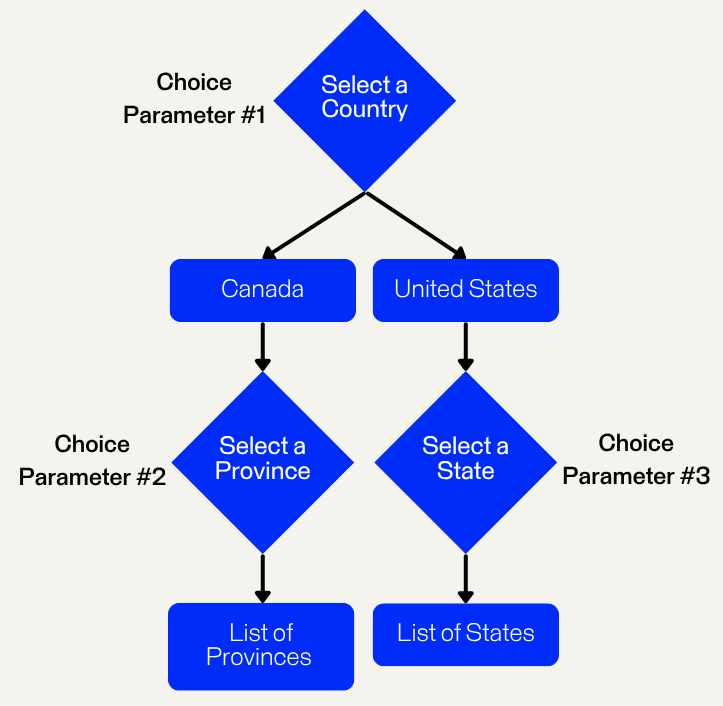
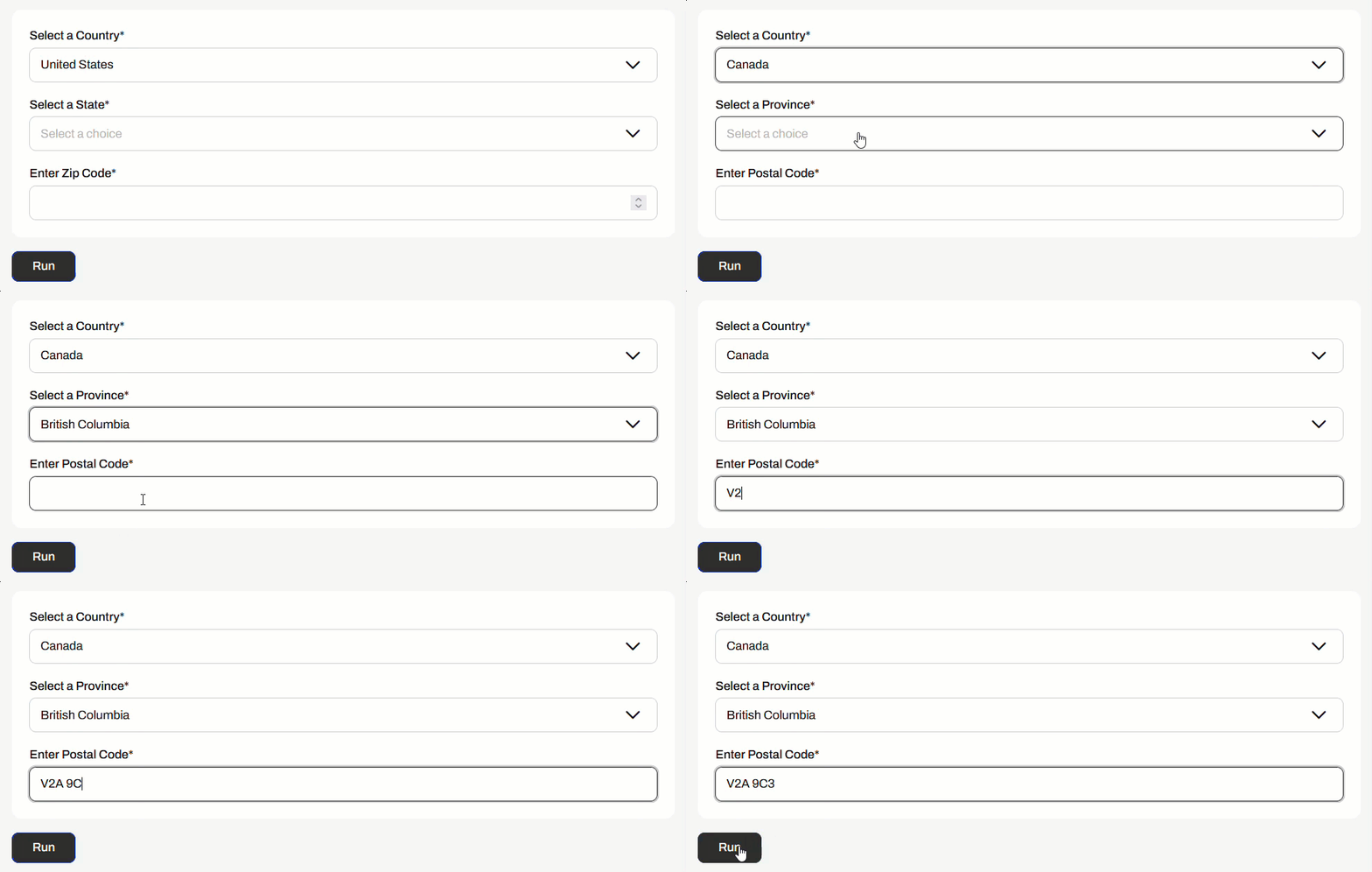
For example, you have a workspace that queries data by country, state, and province, so you create three choice user parameters. However, if you select Canada as the country, you don't need to prompt the user to choose a state, and vice versa for the United States and provinces. Conditional visibility for the state and province parameters lets you display them only after a value is entered in the first parameter.
You can extend conditional visibility to other parameter types, including, but not limited to, yes/no checks, file uploads, geometry selection, and text inputs. Conditional parameter visibility lets you maximize and customize your FME workflows, especially with FME Flow workspace apps that use user input in workspaces.
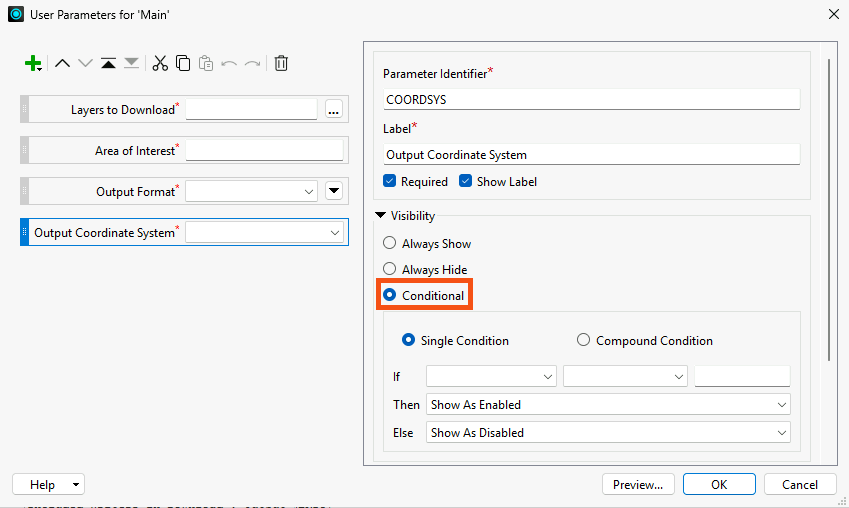
You set and control the conditional visibility of user parameters when you create and edit them in FME Workbench. To conditionally control a parameter's visibility, you enable the Conditional visibility option in the parameter's visibility settings. You then have the option to use a Single or Compound Condition for the If-Then-Else condition.
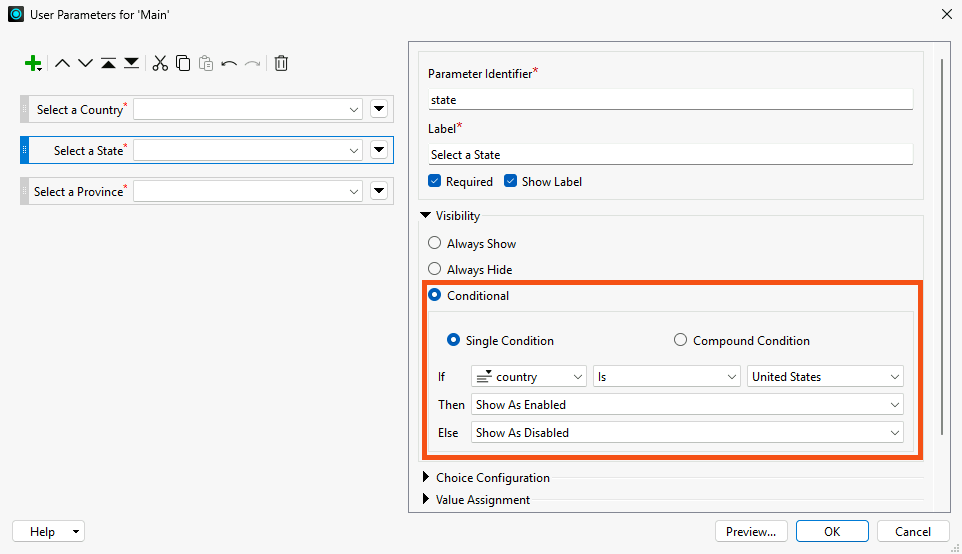
The If statement is structured so that you select a parameter for the first value, then the condition value (Is, Is Not, Contains, Is Empty, etc.), followed by the value to evaluate the condition on. For example, you may want to enable the State parameter only if the Country parameter value is the United States.

If the condition value does not require a value to complete the expression, the third value will disappear. For example, you may only want to display a Postal Code text parameter if the Province parameter is enabled.

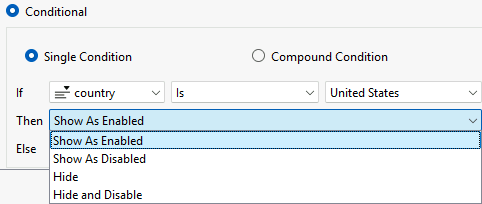
Then and Else set the parameter behavior based on whether the condition is true. You may choose whether to enable, disable, or hide the parameter.
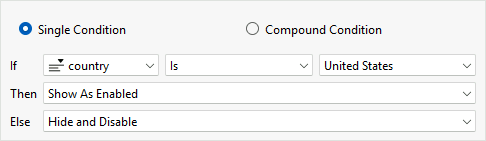
For example, if you select the United States for the Country parameter, the State parameter will be enabled; otherwise, if you choose Canada as the Country, FME will hide and disable the State parameter.
When you run your workspace, the parameters will appear and be enabled conditionally after you input previous parameter values.
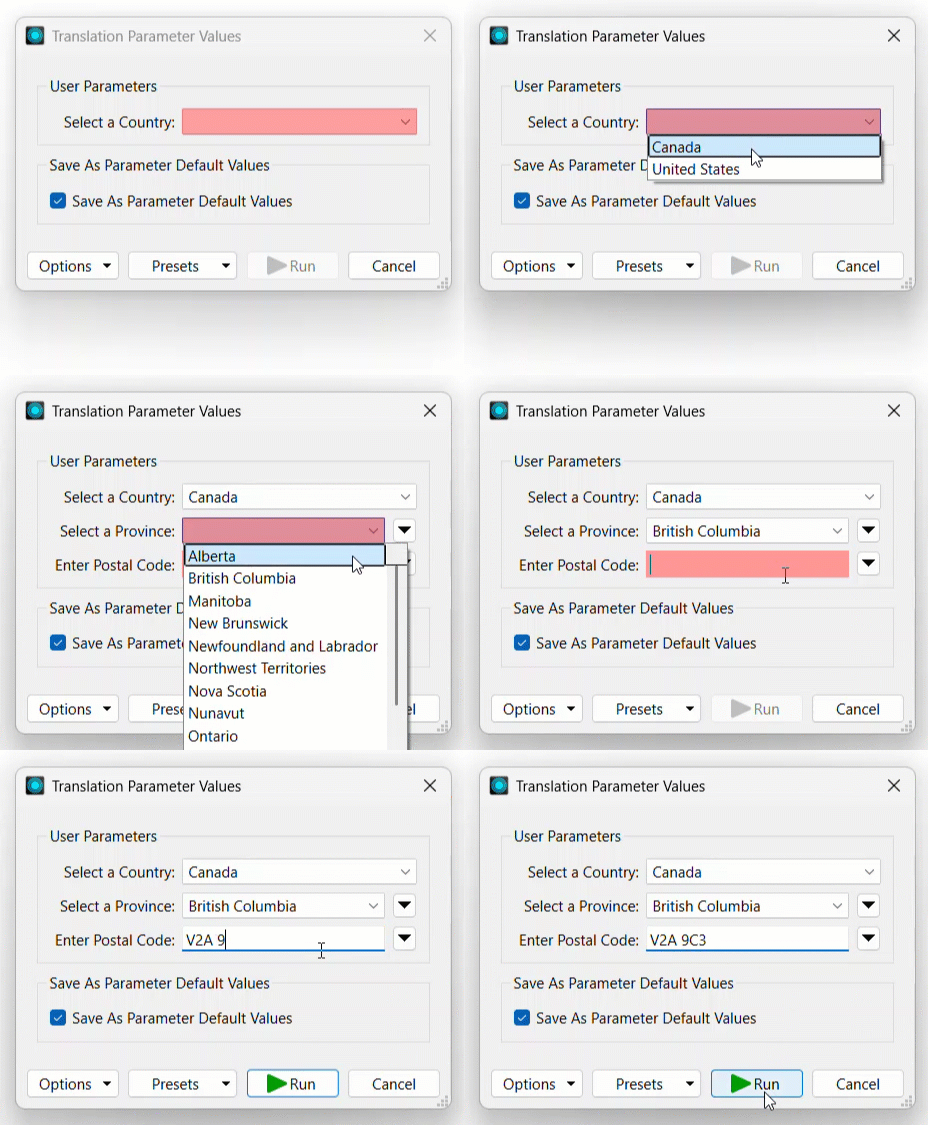
For more information on creating conditional parameters, see our documentation on Creating and Modifying User Parameters and our tutorial on Working With Conditionally Visible Published User Parameters in FME Form.
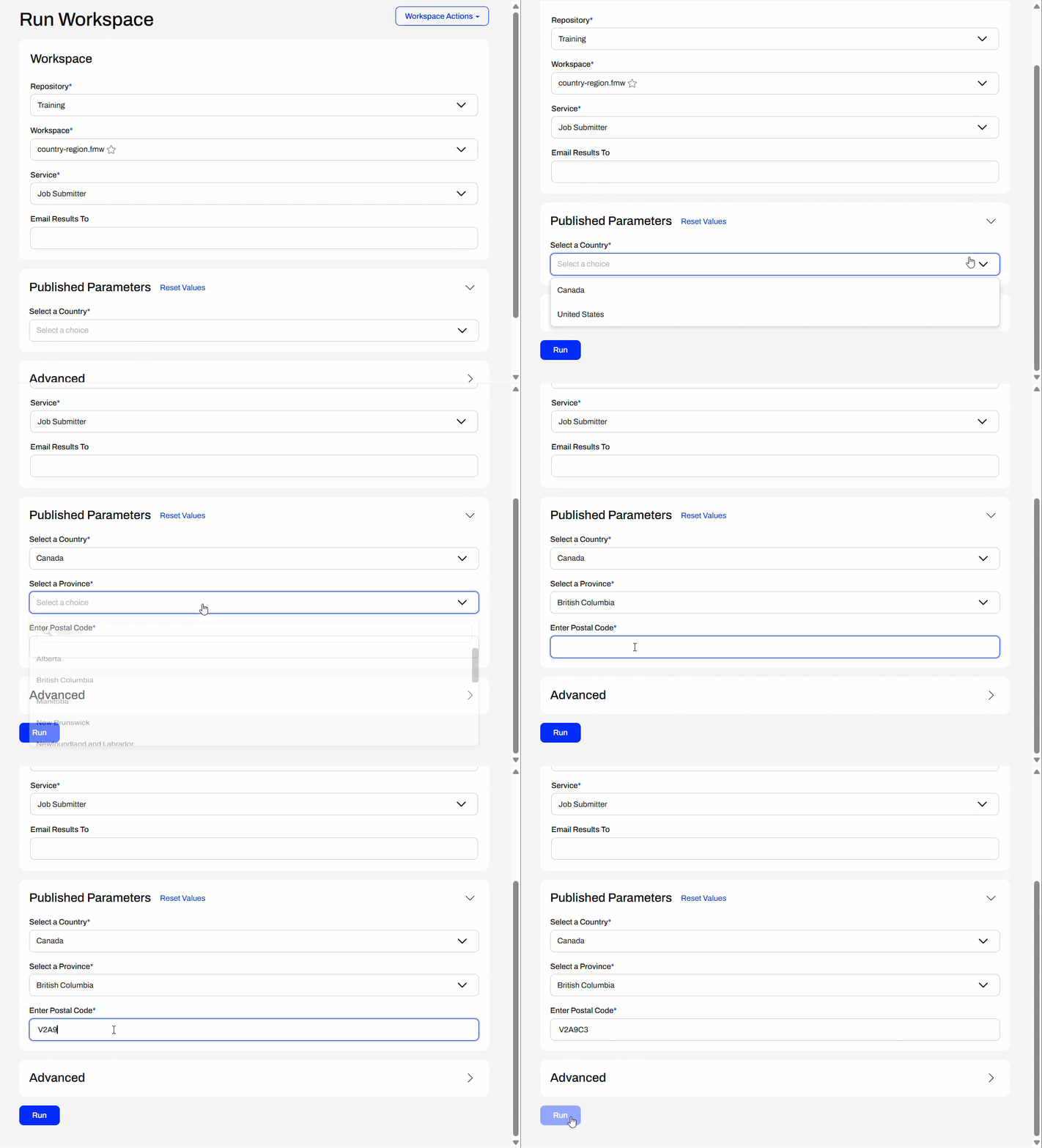
Conditional parameters behave the same on FME Flow as they do when you run your workspace on FME Workbench. Hidden parameters will not appear on FME Flow until you populate previous parameters and complete the condition for the parameters to display.
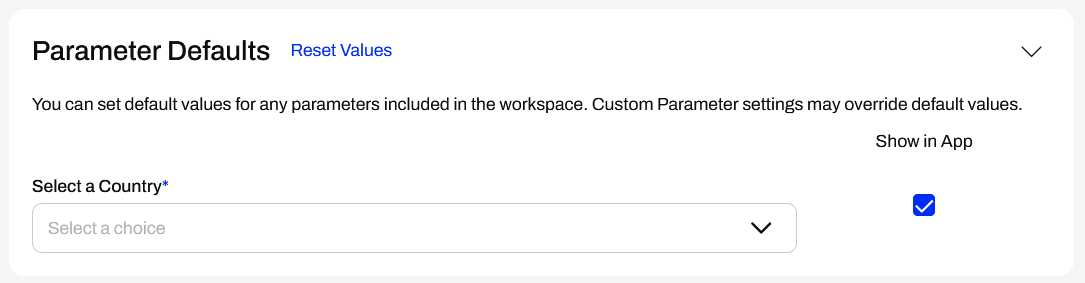
When you create an FME Flow app, the Parameter Defaults section will hide hidden parameters unless the default parameter values meet the condition to enable them. You may not be aware of additional parameters that will display to the user in the app before you create it.
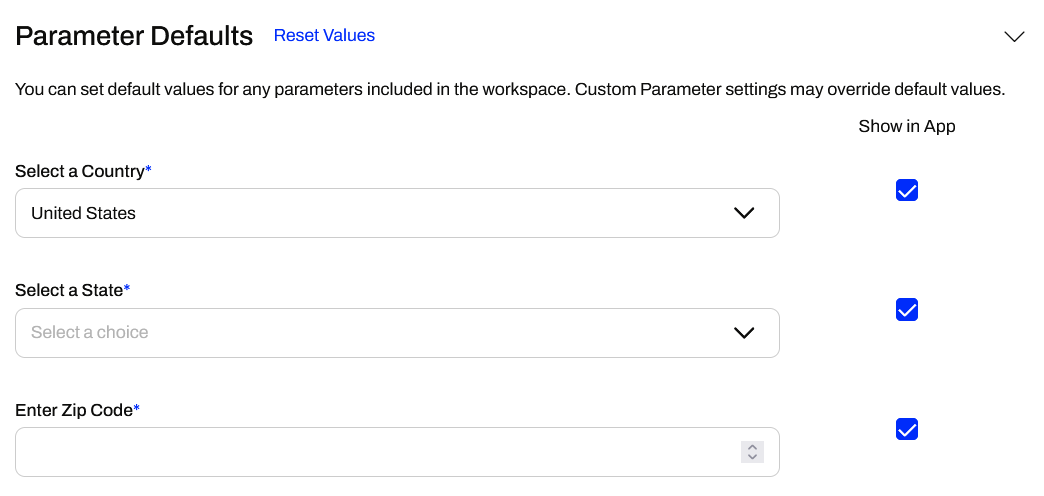
Once you set a default value, the conditional parameters may appear or disappear if the default value changes a condition result.
When you set parameters in a workspace app, they will function the same as in FME Workbench and on the Run a Workspace page.
The content used in this lesson builds on the previous lesson. To do this exercise, you may continue with your workspace from the exercise in Spatially Query Data, or begin with TransitDataDistribution-complete.fmw (C:\FMEData\Workspaces\CreateDataIntegrationApps\TransitDataDistribution-complete.fmw).

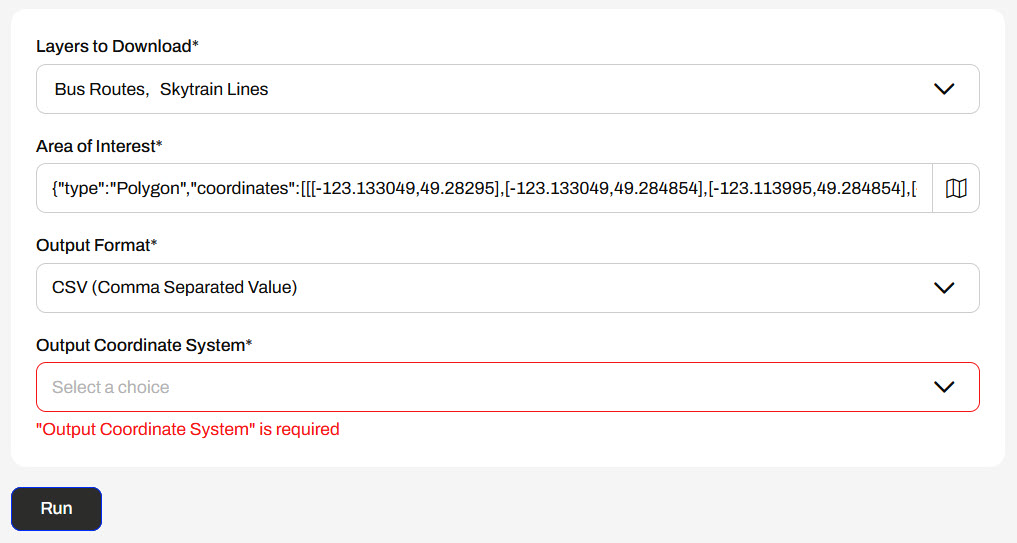
Jennifer continues to work on her Transit Data Distribution app. One output format option is a CSV file. Sometimes CSVs store spatial data records as coordinates; however, the CSV output by Jennifer's workspace does not contain any coordinates, only non-spatial records for the data. In Jennifer's workflow, it doesn't make sense for users to select CSV as the output format and enter coordinate systems, since the data isn't stored spatially. The coordinate system parameter is also required, so users must enter a value to run the app.
In this exercise, you will:
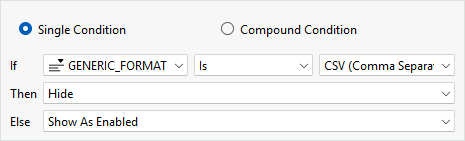

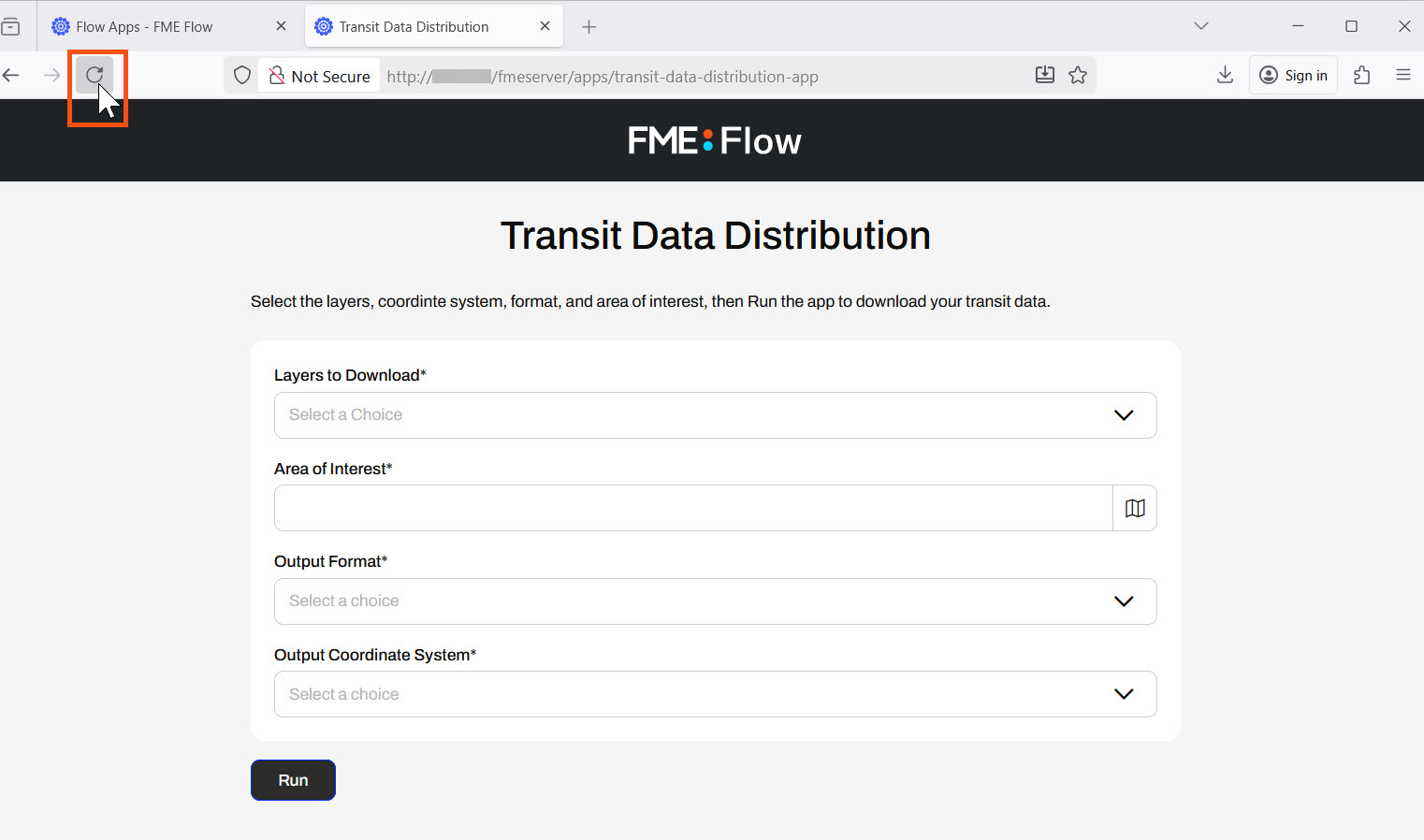
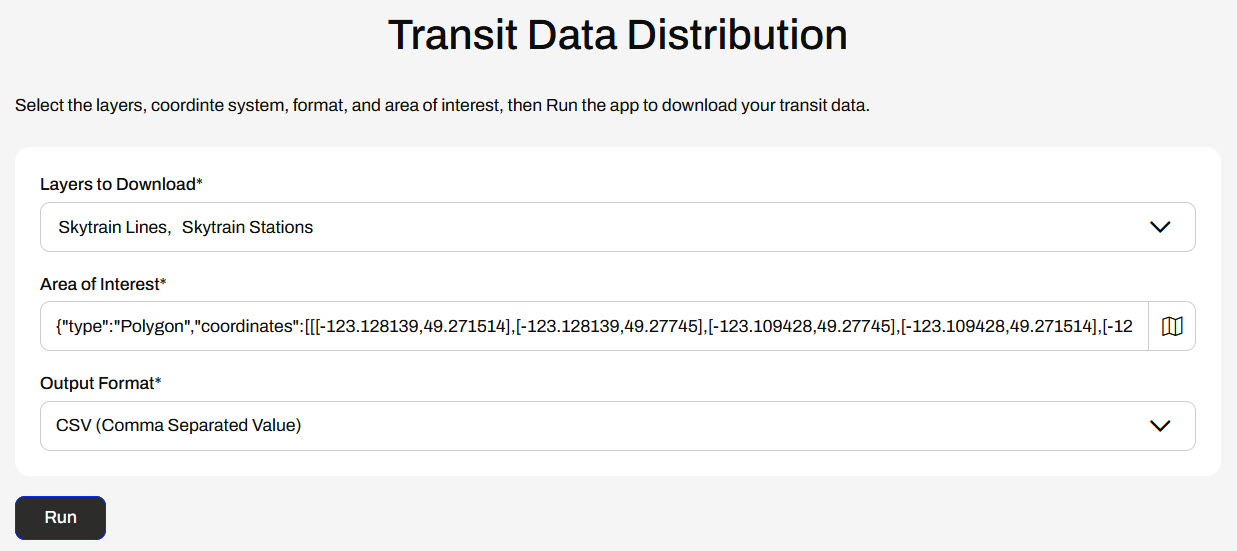
You have now successfully used a conditional parameter in a self-serve workflow to hide a parameter that does not apply based on previous parameter values, so app users are only asked for values their chosen output actually needs.
Conditional parameters allow you to control the visibility settings of parameters based on the value of one or more previous parameters. At runtime, parameters may be hidden or disabled based on values input to prior parameters in the list. The value of a previous parameter is used in an If-Then-Else condition to control the parameter's visibility based on the condition's outcome.
For example, you have a workspace that queries data by country, state, and province, so you create three choice user parameters. However, if you select Canada as the country, you don't need to prompt the user to choose a state, and vice versa for the United States and provinces. Conditional visibility for the state and province parameters lets you display them only after a value is entered in the first parameter.
You can extend conditional visibility to other parameter types, including, but not limited to, yes/no checks, file uploads, geometry selection, and text inputs. Conditional parameter visibility lets you maximize and customize your FME workflows, especially with FME Flow workspace apps that use user input in workspaces.
You set and control the conditional visibility of user parameters when you create and edit them in FME Workbench. To conditionally control a parameter's visibility, you enable the Conditional visibility option in the parameter's visibility settings. You then have the option to use a Single or Compound Condition for the If-Then-Else condition.
The If statement is structured so that you select a parameter for the first value, then the condition value (Is, Is Not, Contains, Is Empty, etc.), followed by the value to evaluate the condition on. For example, you may want to enable the State parameter only if the Country parameter value is the United States.
If the condition value does not require a value to complete the expression, the third value will disappear. For example, you may only want to display a Postal Code text parameter if the Province parameter is enabled.
Then and Else set the parameter behavior based on whether the condition is true. You may choose whether to enable, disable, or hide the parameter.
For example, if you select the United States for the Country parameter, the State parameter will be enabled; otherwise, if you choose Canada as the Country, FME will hide and disable the State parameter.
When you run your workspace, the parameters will appear and be enabled conditionally after you input previous parameter values.
For more information on creating conditional parameters, see our documentation on Creating and Modifying User Parameters and our tutorial on Working With Conditionally Visible Published User Parameters in FME Form.
Conditional parameters behave the same on FME Flow as they do when you run your workspace on FME Workbench. Hidden parameters will not appear on FME Flow until you populate previous parameters and complete the condition for the parameters to display.
When you create an FME Flow app, the Parameter Defaults section will hide hidden parameters unless the default parameter values meet the condition to enable them. You may not be aware of additional parameters that will display to the user in the app before you create it.
Once you set a default value, the conditional parameters may appear or disappear if the default value changes a condition result.
When you set parameters in a workspace app, they will function the same as in FME Workbench and on the Run a Workspace page.
The content used in this lesson builds on the previous lesson. To do this exercise, you may continue with your workspace from the exercise in Spatially Query Data, or begin with TransitDataDistribution-complete.fmw (C:\FMEData\Workspaces\CreateDataIntegrationApps\TransitDataDistribution-complete.fmw).
Jennifer continues to work on her Transit Data Distribution app. One output format option is a CSV file. Sometimes CSVs store spatial data records as coordinates; however, the CSV output by Jennifer's workspace does not contain any coordinates, only non-spatial records for the data. In Jennifer's workflow, it doesn't make sense for users to select CSV as the output format and enter coordinate systems, since the data isn't stored spatially. The coordinate system parameter is also required, so users must enter a value to run the app.
In this exercise, you will:
You have now successfully used a conditional parameter in a self-serve workflow to hide a parameter that does not apply based on previous parameter values, so app users are only asked for values their chosen output actually needs.

